
Parent Resources
Join Your Meeting
When you click the meeting link, you may see several windows or prompts before entering the meeting. Follow the steps below to join successfully.

After clicking “Join Meeting,” follow the steps below.
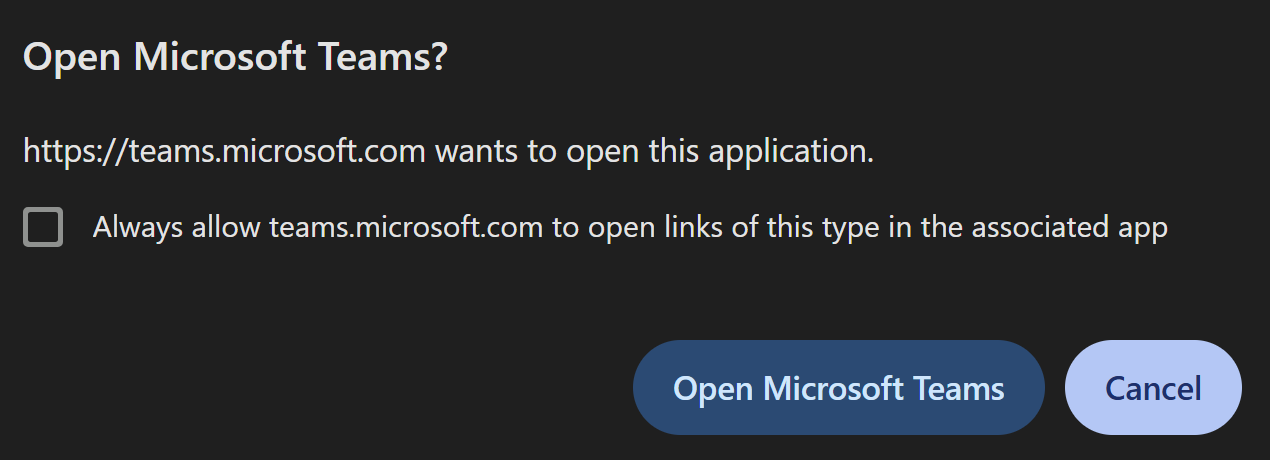
Step 1 — Cancel the Microsoft Teams App Prompt
When you see this window, click "Cancel."
Do not click "Open Microsoft Teams".
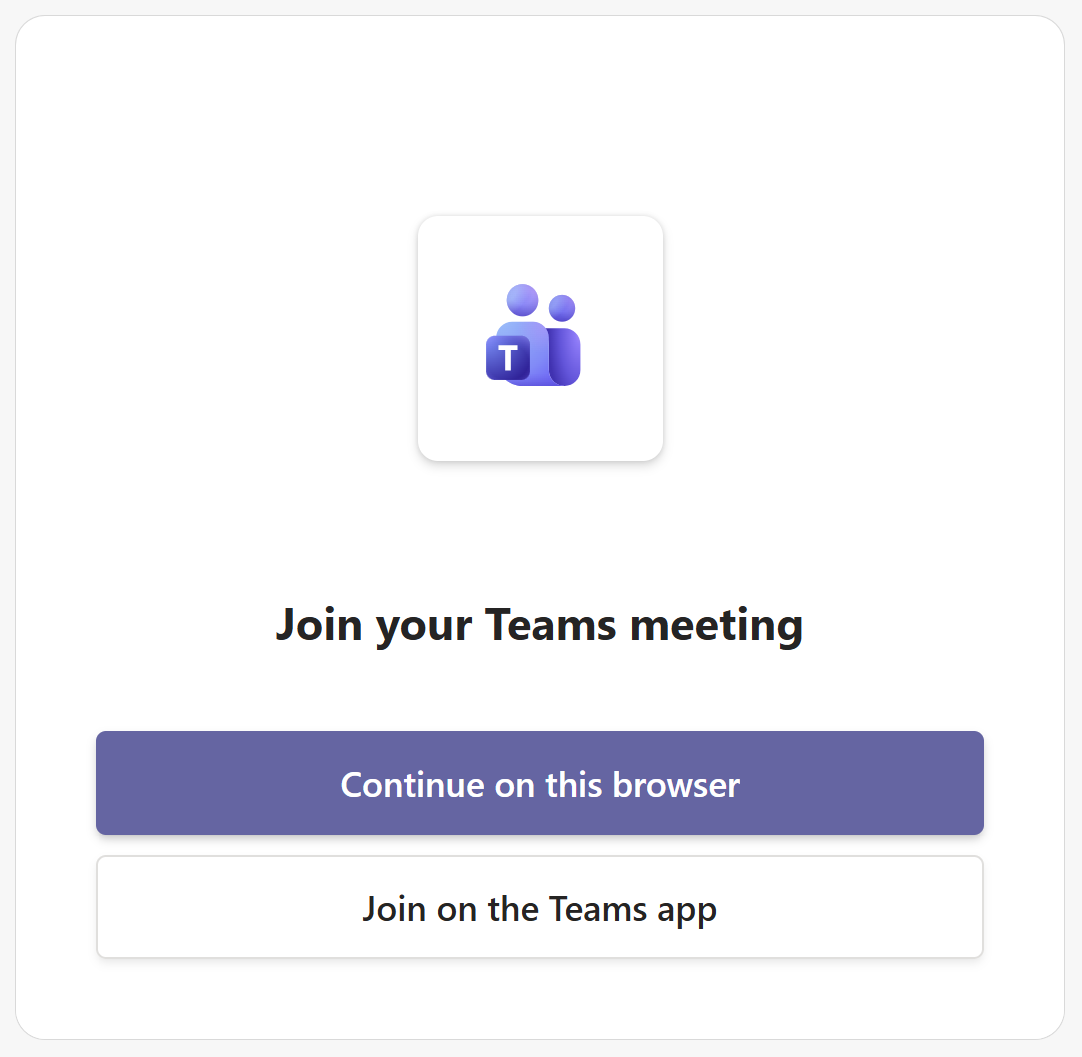
Step 2 — Continue in Your Browser
When you see this screen, click "Continue on this browser."
Parents do not need to install the Microsoft Teams app to join the meeting.
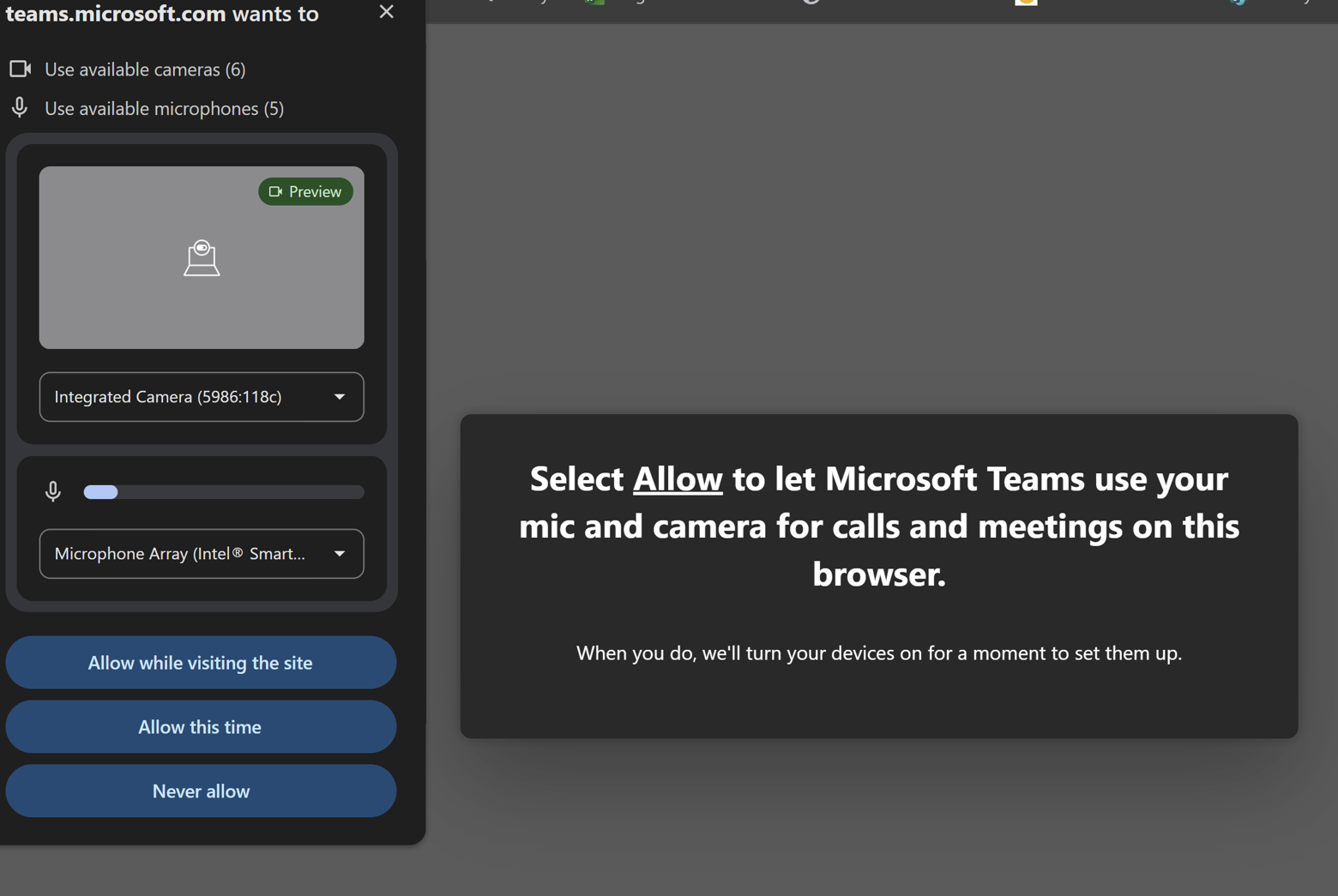
Step 3 — Allow Camera and Microphone Access
When your browser asks for permission to use your camera and microphone, click "Allow while visiting the site."
This will allow Microsoft Teams to use the device's microphone and camera for the meeting.
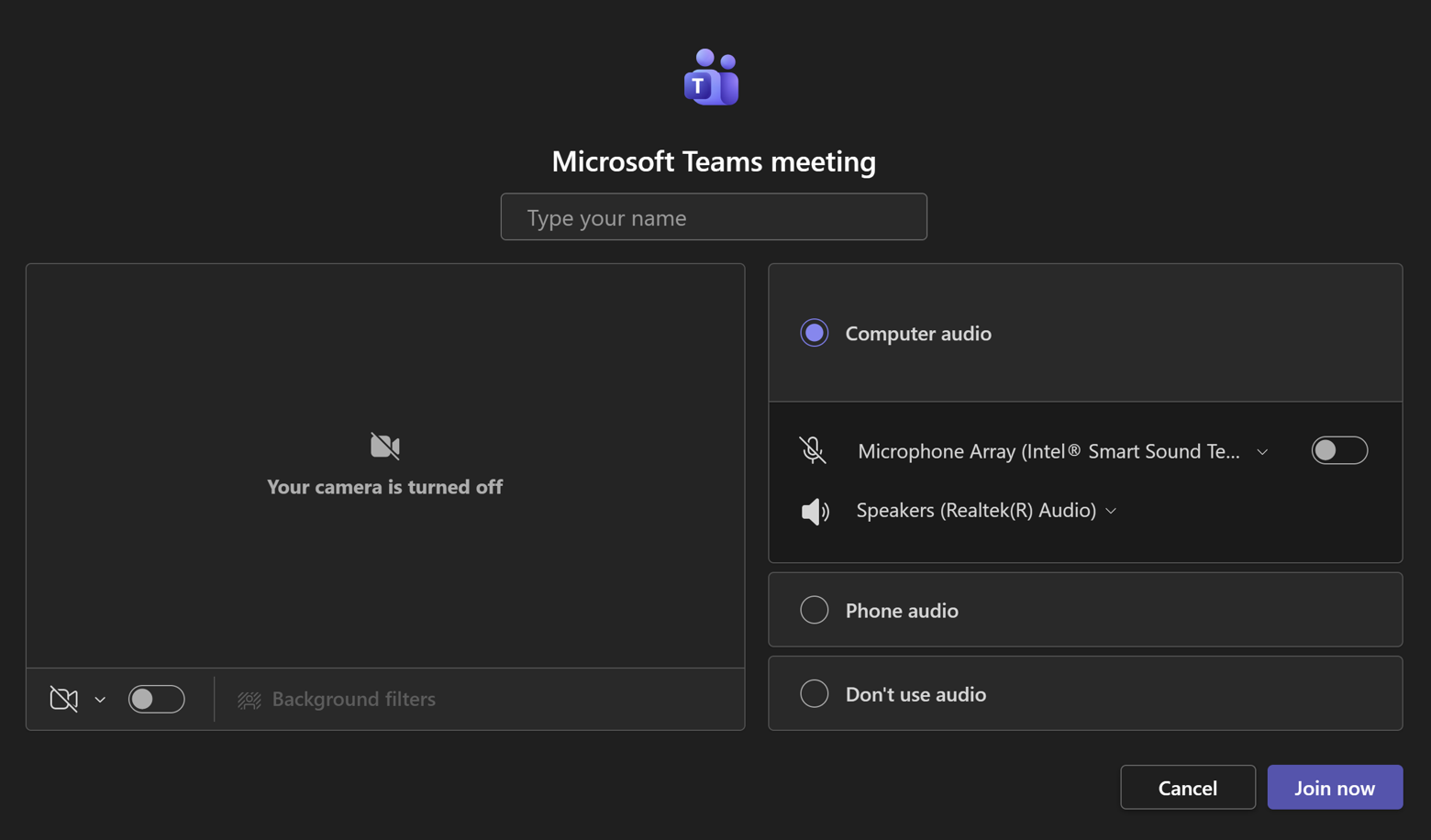
Step 4 — Enter Your Name and Join
Type your name in the box at the top of the screen. After entering your name, click "Join now".
Parents may leave their camera off if they prefer, but they should make sure their audio settings are correct before joining.
Step 5 — Wait to Be Admitted
You are now in the meeting waiting room. You should not have to wait long. Someone will let you into the meeting very shortly.